Why this pattern matters
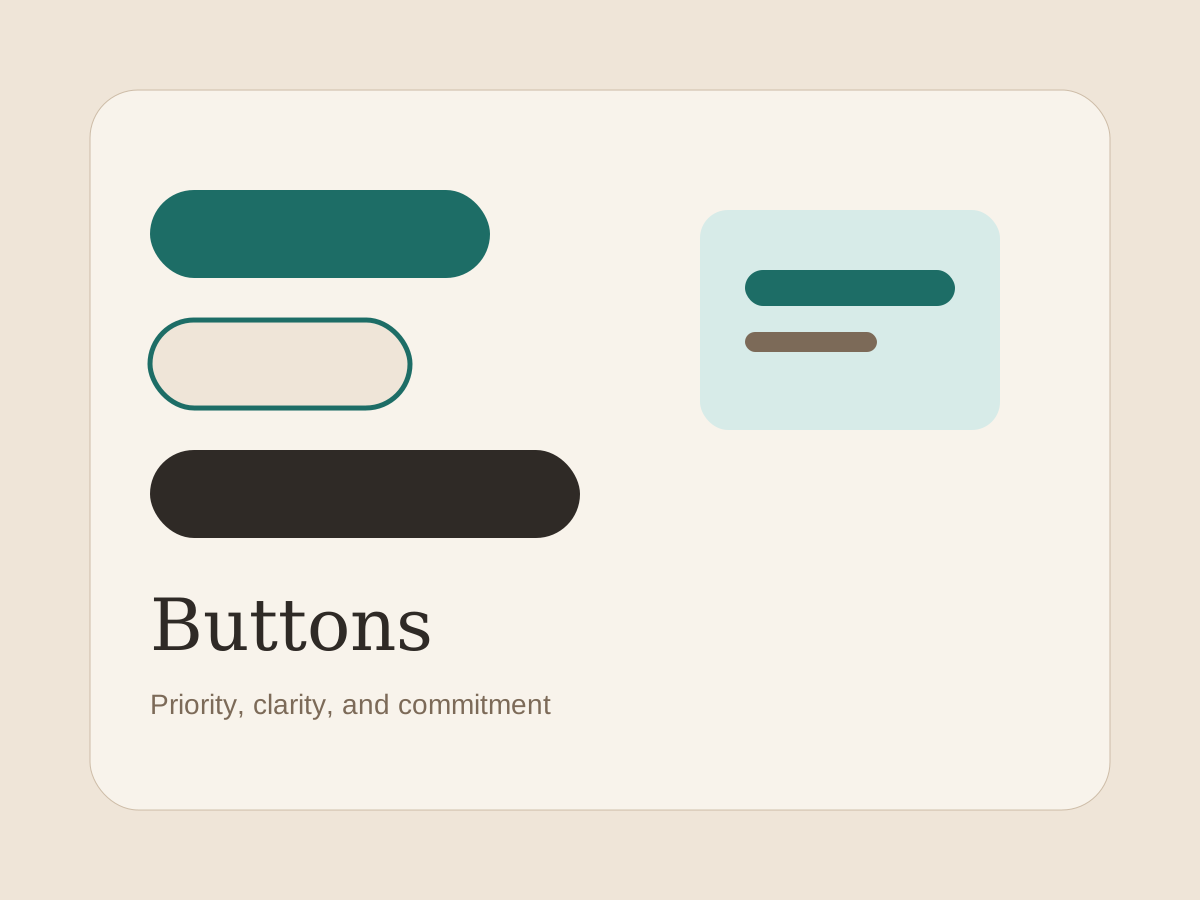
Buttons settle a decision. Once a screen introduces a clear next step, the button label, emphasis, and position tell the user what the product considers safest, fastest, or most important.
That sounds obvious, but the pattern gets noisy quickly. Pages often add too many button styles, split intent across several "primary" actions, or hide the real decision behind generic labels like Continue.1
Naming notes
Teams almost always start with Button, then drift into CTA, Primary action, or brand-specific language when the component grows variants. That drift is not harmless. It changes how designers talk about severity, layout, and accessibility states.
If the action is irreversible or tightly coupled to a form, align the button language with the surrounding Form Field guidance so the screen reads as one decision path instead of two separate controls.
Common failure modes
The biggest failure is vague labeling. A button should describe the outcome, not the gesture. Create workspace beats Submit. Archive draft beats Done.
The second failure is visual inflation. When every action gets a high-contrast style, the hierarchy collapses and the user must re-parse the entire footer row. Several of the linked examples show how restrained contrast can still keep the primary action obvious.
The third failure is spacing. Buttons often borrow layout tokens from cards or tables and end up too small to read comfortably, especially when paired with inline validation or status messaging.
Relationship to adjacent patterns
Buttons sit next to patterns that also compress decisions, especially Command Menu for expert workflows and Empty State for low-data screens.
Those patterns are different because they frame intent differently. A command menu is about acceleration. An empty state is about recovery. A button is about commitment.
Footnotes
Footnotes
-
Specific action labels reduce hesitation because the screen can be scanned top-to-bottom without translating generic verbs into outcomes. ↩